---
title: "Tagging & Editing"
url: "https://help.fizzy.do/3/fizzy-help-guide/49/tagging-editing"
---
###Tag a card
Save time by grouping related cards together using tags. For example, an electrician can open the Fizzy menu, select the **Electric** tag, and they'll see all the electrical needs across all boards in a snap.
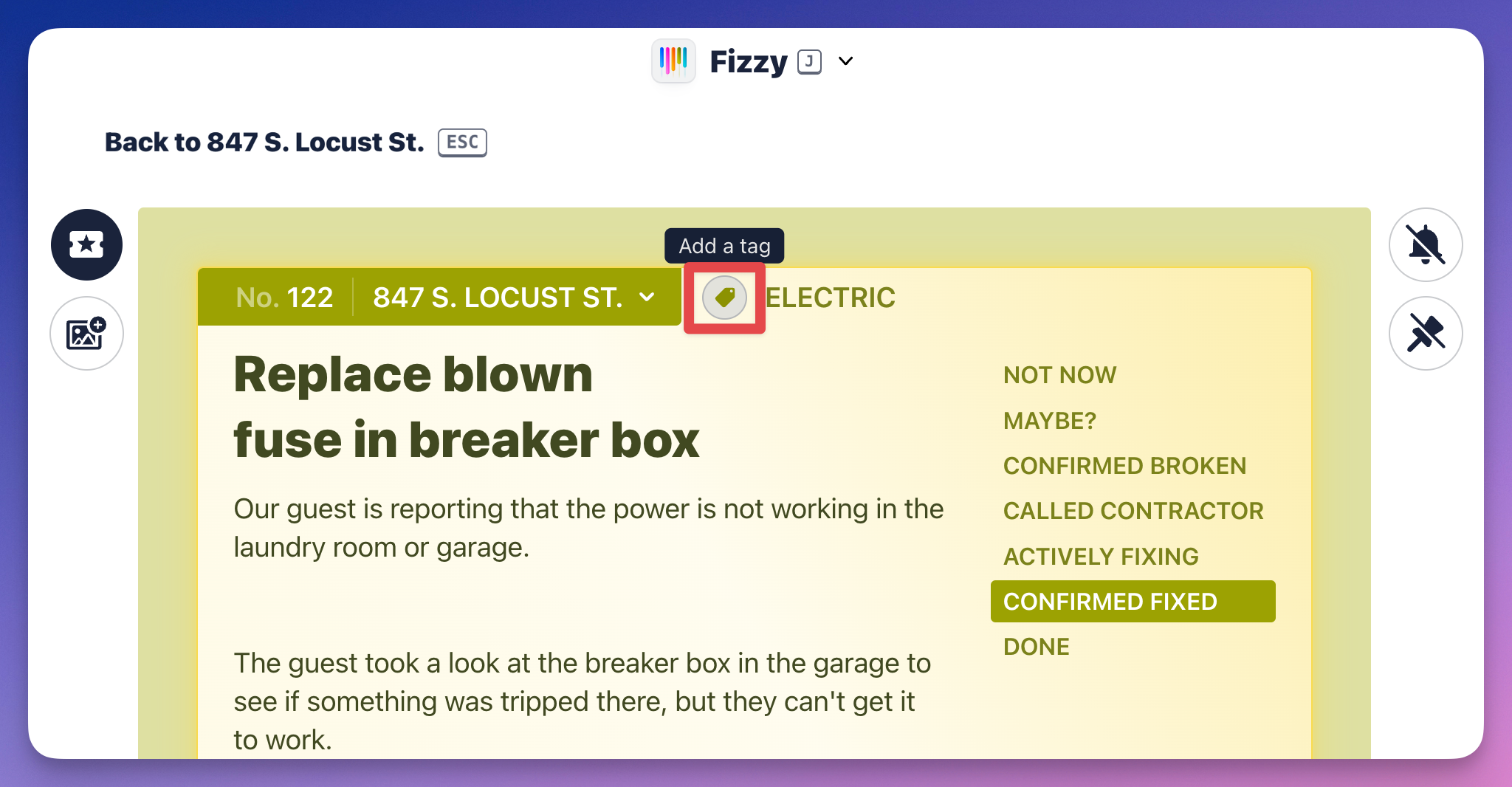
Add a tag by clicking the "tag" icon located at the top of the card or by hitting T on your keyboard. This'll open a menu where you can add a new tag, select an existing tag, and remove a tag.
***
###Edit a card
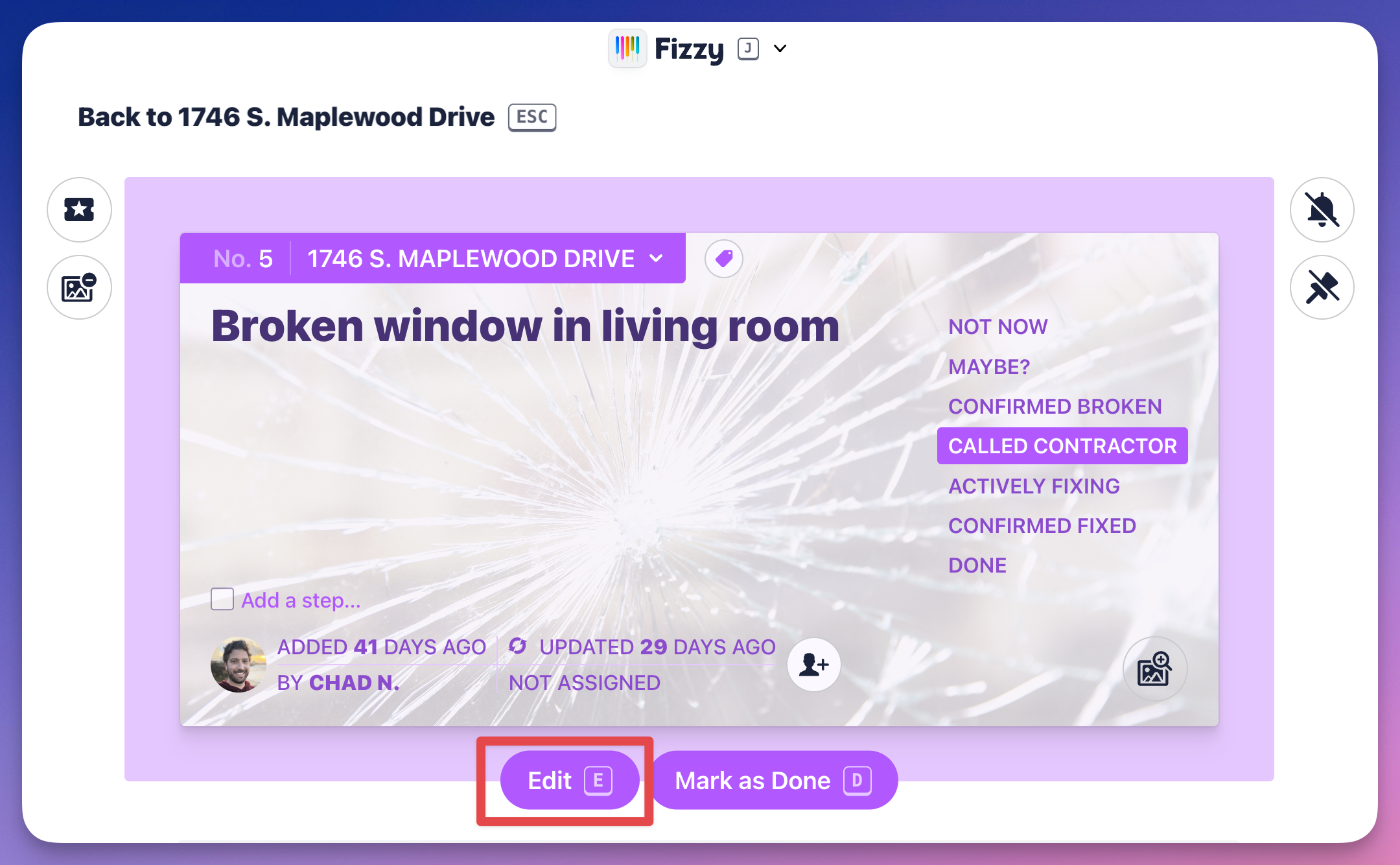
You've got three options here: click the card title to open the text editor; click the **Edit** button; or press E on your keyboard. Any of these actions will open the text editor.
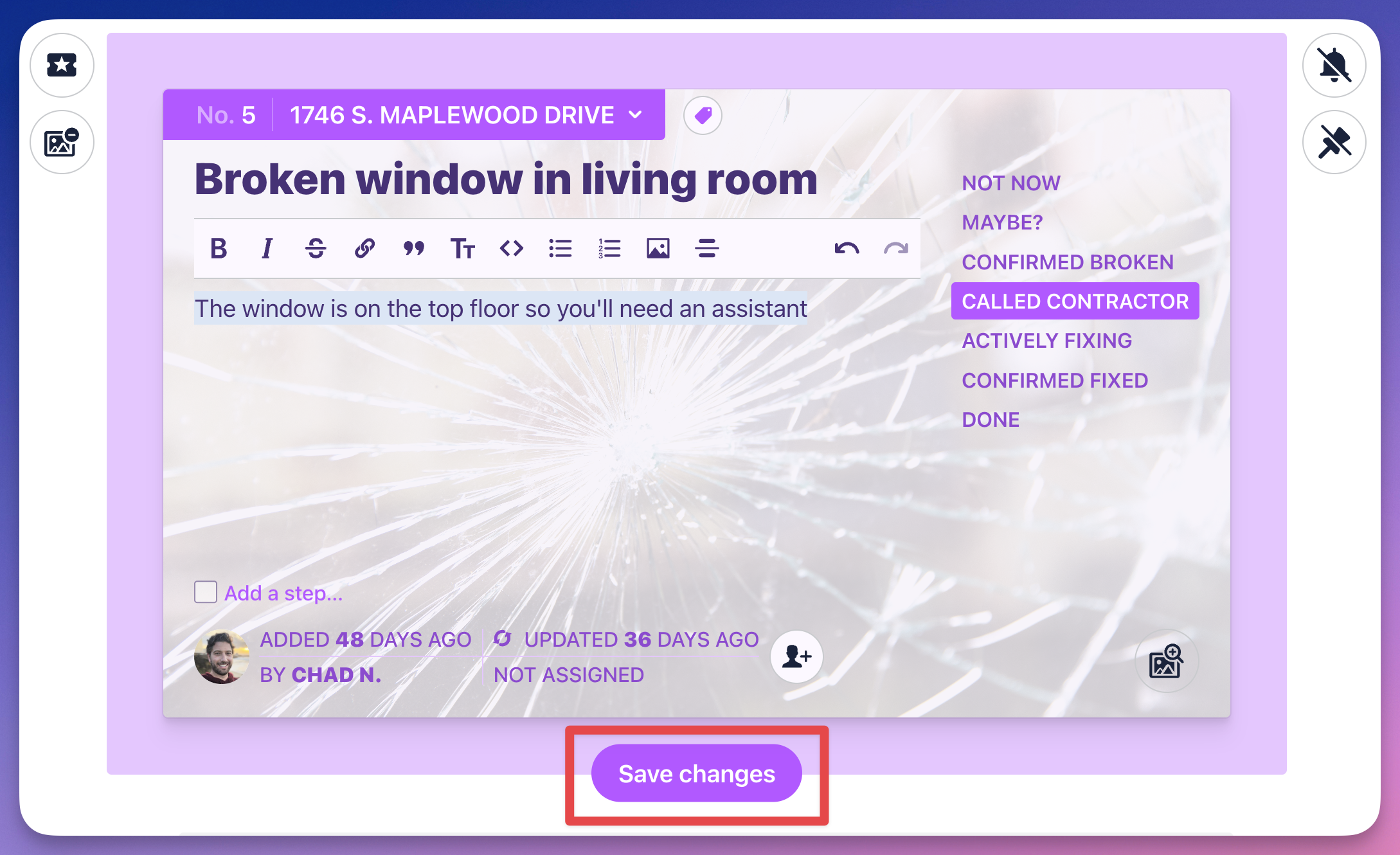
Save your changes by hitting CMD + Return (Mac) or CTRL + Enter (Windows) on your keyboard or clicking the Save changes button.
***
###Edit or delete a step
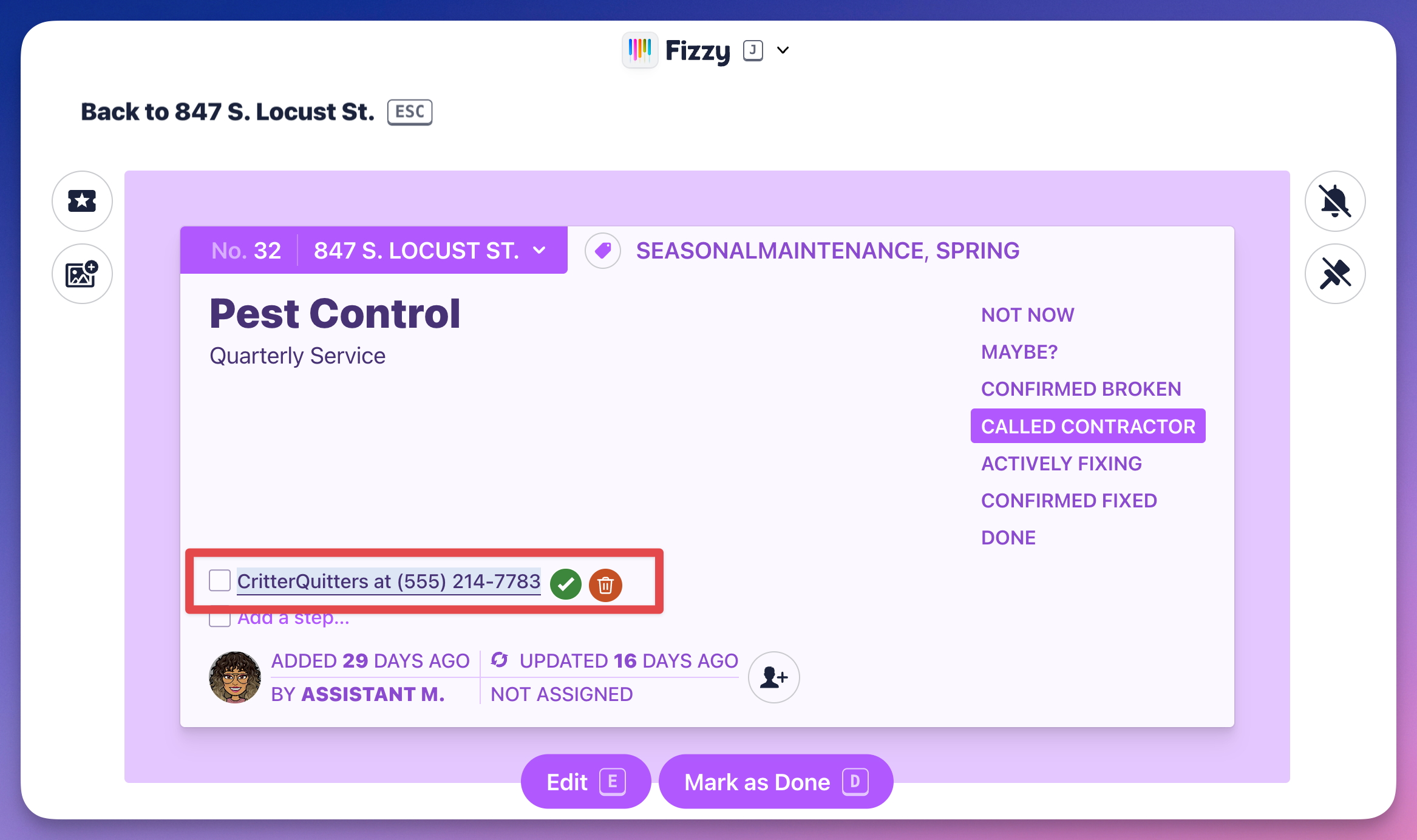
Changing a step is effortless — click the step, start typing to make changes, and hit the checkmark to save. Or, click the trash icon to delete it. That's it.