---
title: "Apps"
url: "https://help.fizzy.do/3/fizzy-help-guide/78/apps"
---

Access Fizzy like you would any other app on your desktop by installing Fizzy's PWA (progressive web app).

<div style="text-align: center;"><iframe width="1120" height="650" src="https://www.youtube.com/embed/VhEjlJVlZcM?si=XGvjGoSMMxqudVrd&rel=0" title="YouTube video player" frameborder="0" allow="accelerometer; autoplay; clipboard-write; encrypted-media; gyroscope; picture-in-picture; web-share" referrerpolicy="strict-origin-when-cross-origin" allowfullscreen></iframe></div>
***

####Chrome
1. Log into Fizzy using a Chrome browser.
2. Click the 'Installation' icon in the URL bar.
3. Click the **Install** button from the pop-up window.

![Screenshot of a Chrome Browser with the Installation icon and Install button outlined in red.](https://help.fizzy.do/u/fizzy-pwa-chrome-DNoUbj.png) 

#### Edge
1. Log into Fizzy using a Microsoft Edge browser.
2. Click the 'apps' icon in the URL bar.
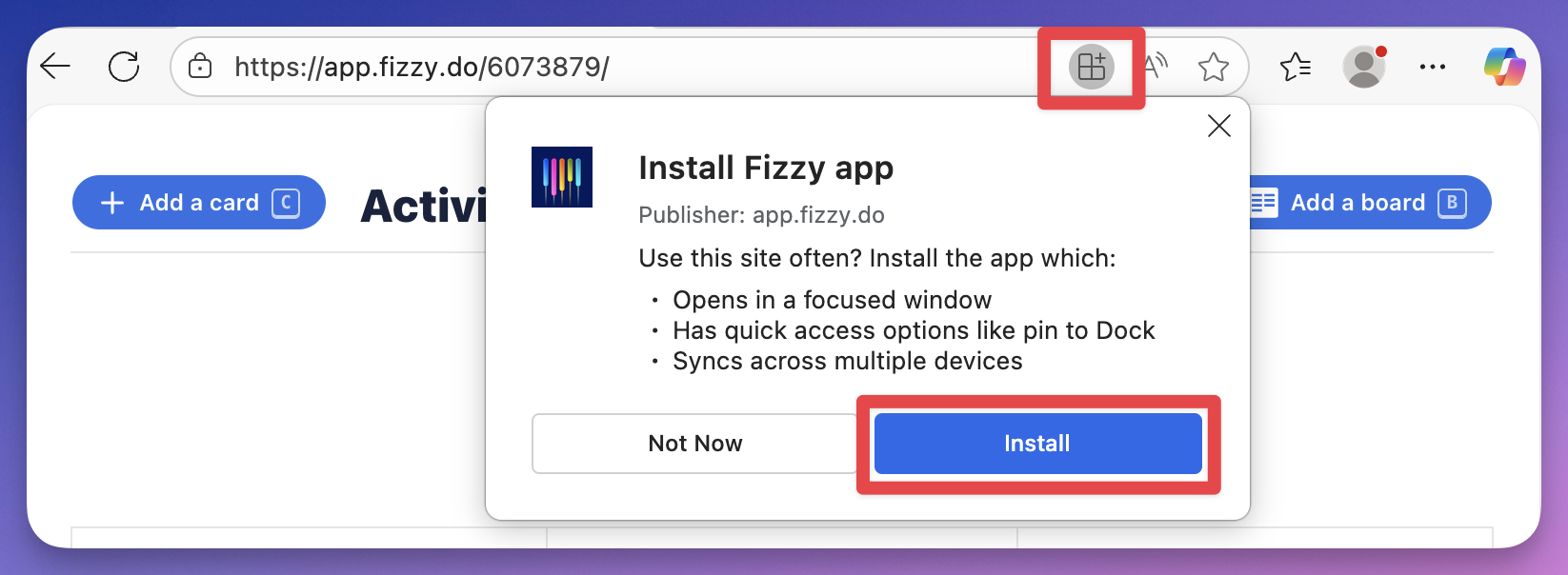

![Screenshot of a Microsoft Edge Browser with the Apps icon outlined in red.](https://help.fizzy.do/u/fizzy-pwa-edge-NF8Pd3.png) 

####Safari
1. Log into Fizzy using a Safari browser.
2. Go to the **File** menu.
3. Select **Add to Dock**.
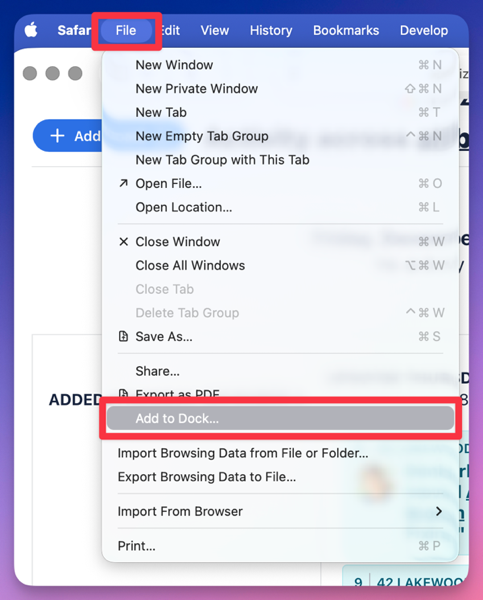

<p align="center">
  <img src="https://help.fizzy.do/u/fizzy-pwa-safari-GRbMUF.png" alt="Screenshot of a Safari Browser with the File menu opened and the Add to Dock option is outlined in red." />
</p>
