---
title: "Adding &amp; Assigning"
url: "https://help.fizzy.do/3/fizzy-help-guide/48/adding-assigning"
---

Getting things done just feels better with Fizzy — and you’ll do it all using cards.

Cards are simple and have everything you need to make progress — add steps, post comments, assign the card to someone else, and more! We've raised the bar and you'll really feel it after creating your first card.

<div style="text-align: center;"><iframe width="1120" height="630" src="https://www.youtube.com/embed/uf077zOhFUo?si=tVcs6zqLsv_76067&rel=0" title="YouTube video player" frameborder="0" allow="accelerometer; autoplay; clipboard-write; encrypted-media; gyroscope; picture-in-picture; web-share" referrerpolicy="strict-origin-when-cross-origin" allowfullscreen></iframe></div>
***
###Add a new card
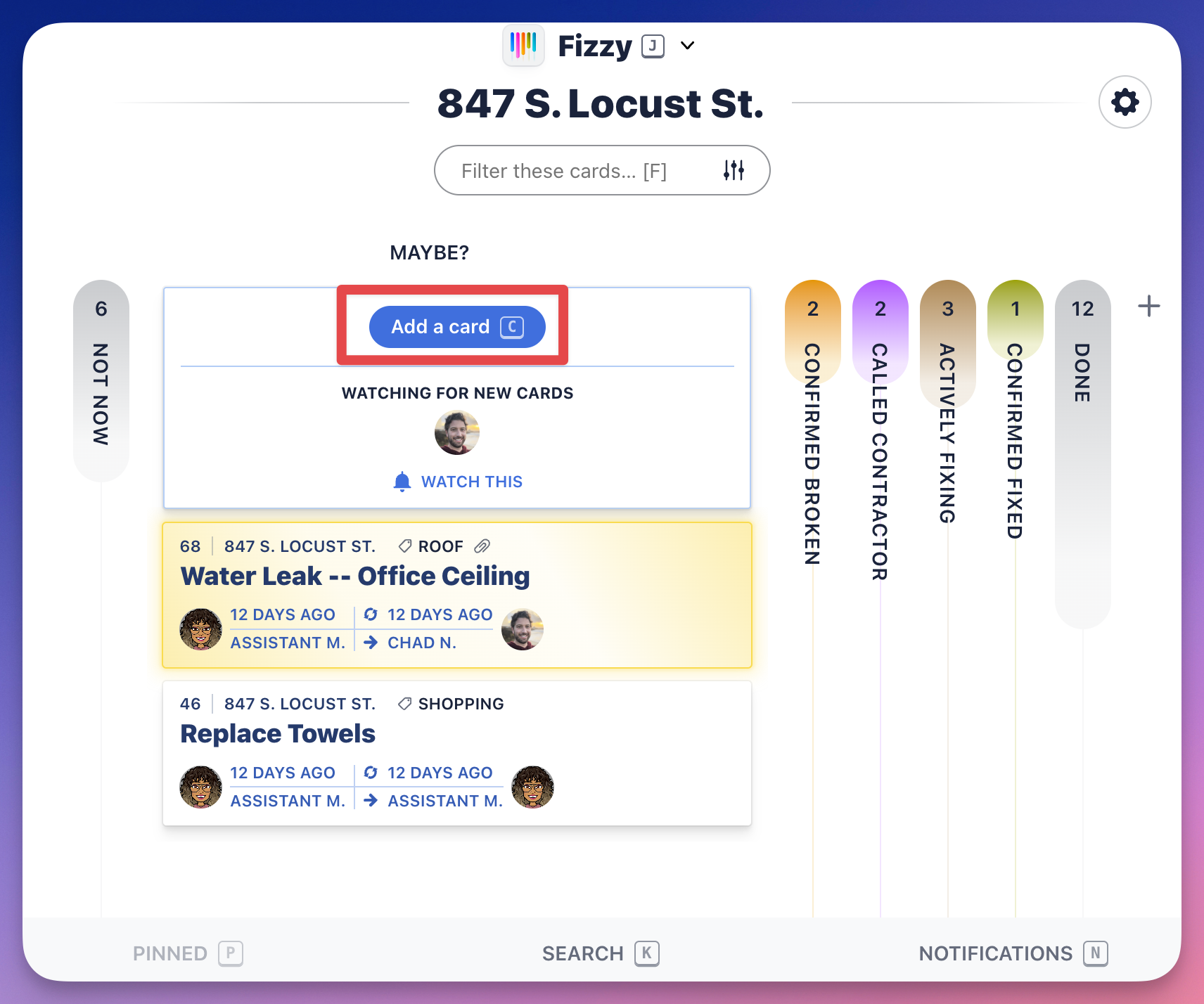
Similar to boards, we've made it easy to create cards. You can make a new card from the <a href="https://help.fizzy.do/3/fizzy-help-guide/41/home”target="_blank">Home Screen</a> or from a <a href="https://help.fizzy.do/3/fizzy-help-guide/45/adding-viewing”target="_blank">board</a> —  click the Add a card button or hit <code>C</code>on your keyboard.

 ![Screenshot of the Fizzy Home screen showing recent activity in three columns. The Add a card button outlined in red.](https://help.fizzy.do/u/fizzy-add-a-card-from-column-5fwHbH.png) 
***
###Add a step to your card
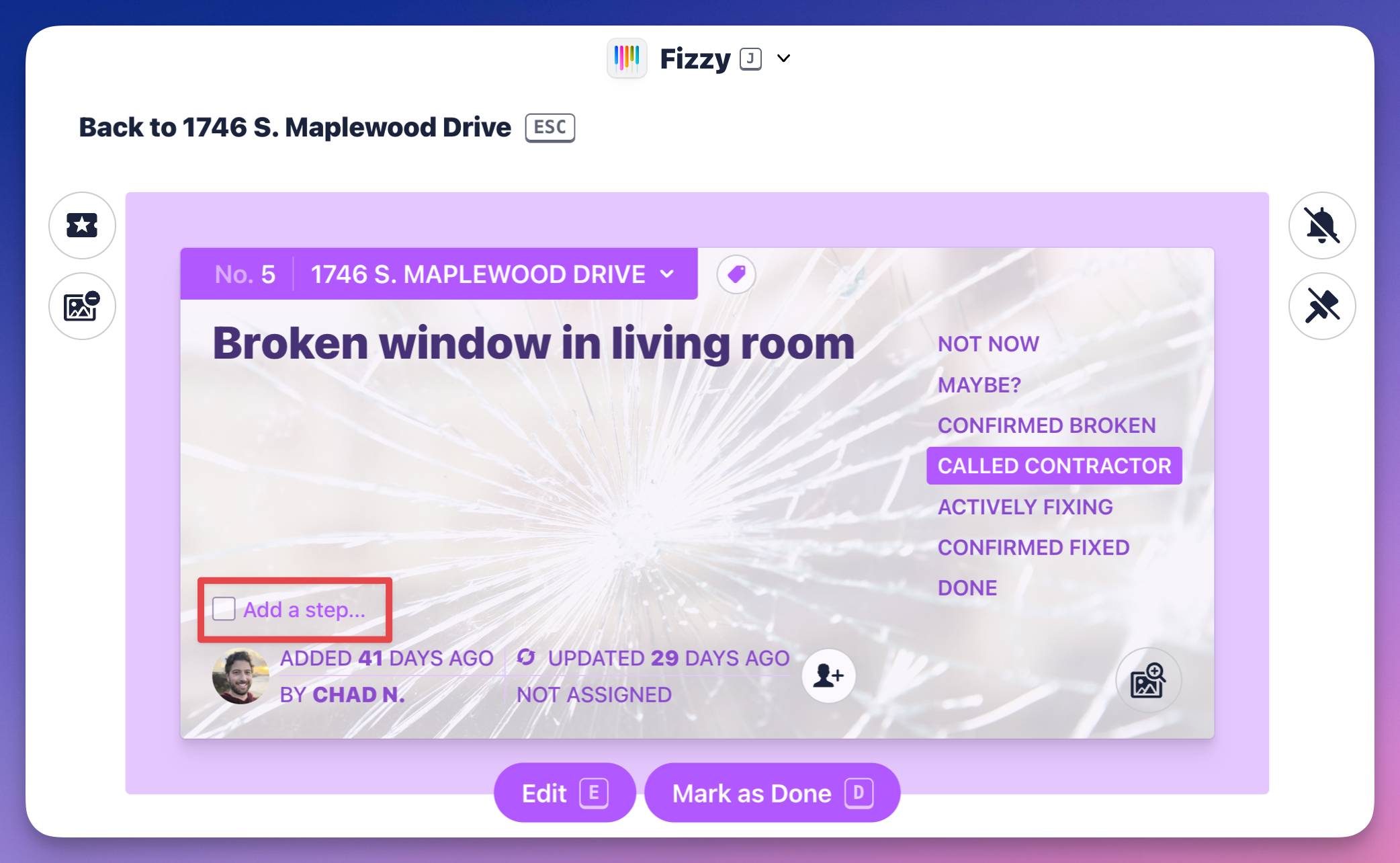
Some tasks require multiple steps. Click the **Add a step...** link located on the bottom-left, above the card's creator. When you're finished typing, hit <code>return</code> (Mac) or <code>enter</code> (Windows) on your keyboard to save.

 ![Screenshot of a Fizzy card with the Add a step... option outlined in red.](https://help.fizzy.do/u/fizzy-add-a-step-eF42fX.png) 
***
###Assign a card
When collaborating with others, you can assign cards by clicking the "Add a person" icon located on the bottom-right and select the person from the pop-up menu.
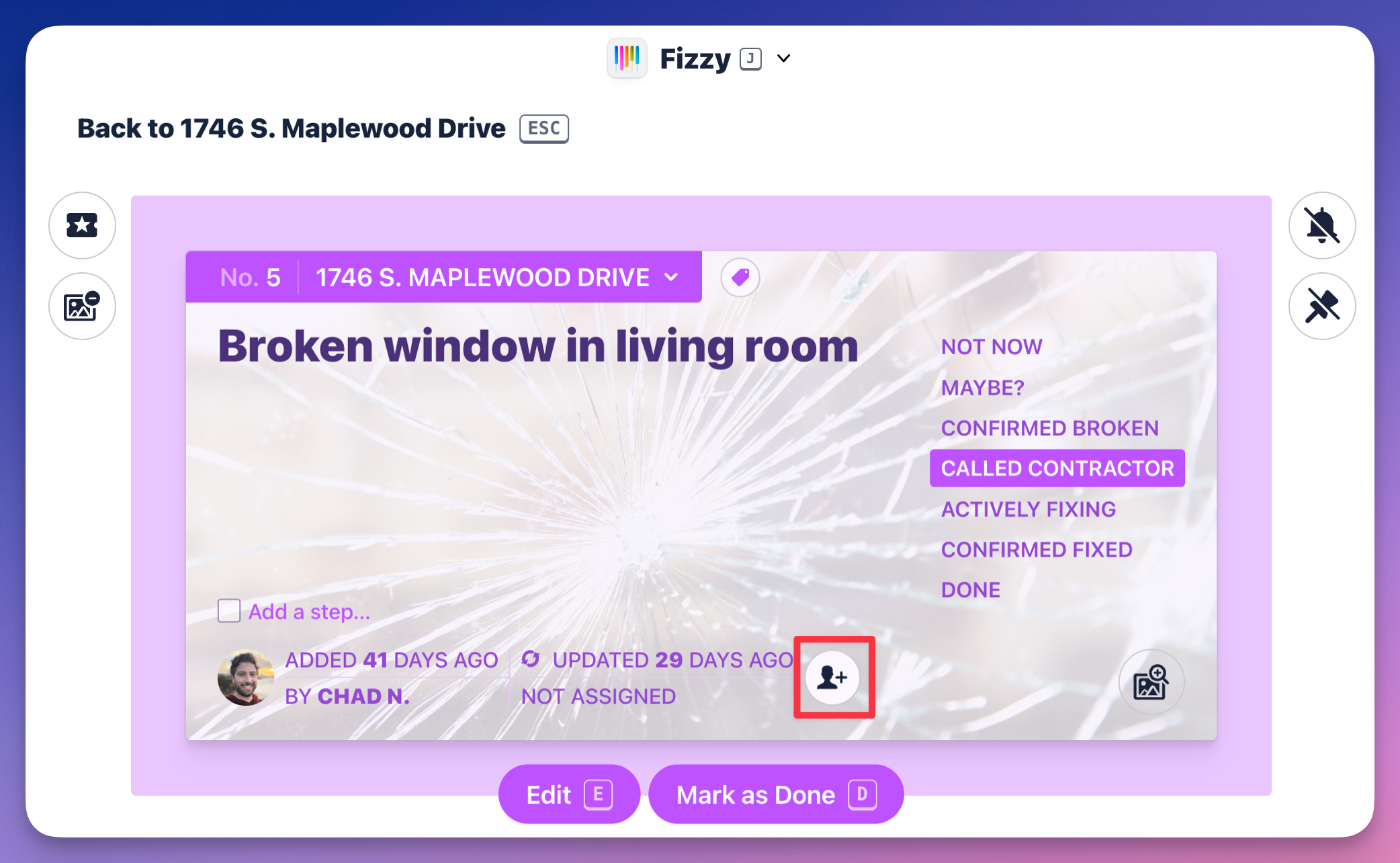

 ![Screenshot of a Fizzy card with the Add a person icon outlined in red.](https://help.fizzy.do/u/fizzy-assign-a-card-UFMeVm.png)