Move a card
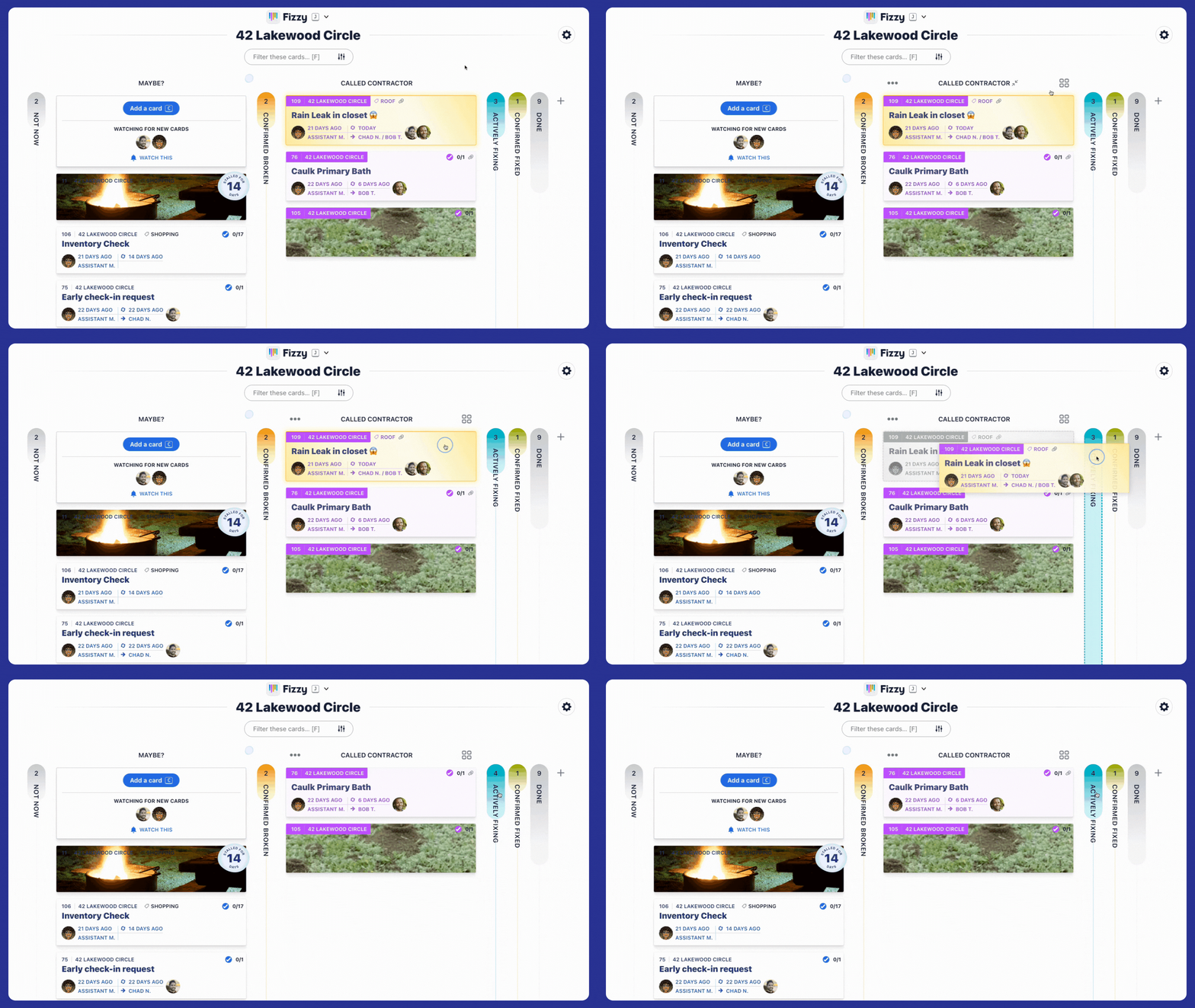
As work progresses, you'll move it to a different column so you can quickly see its status on the board. When looking at a board, simply drag and drop a card between columns to move it.
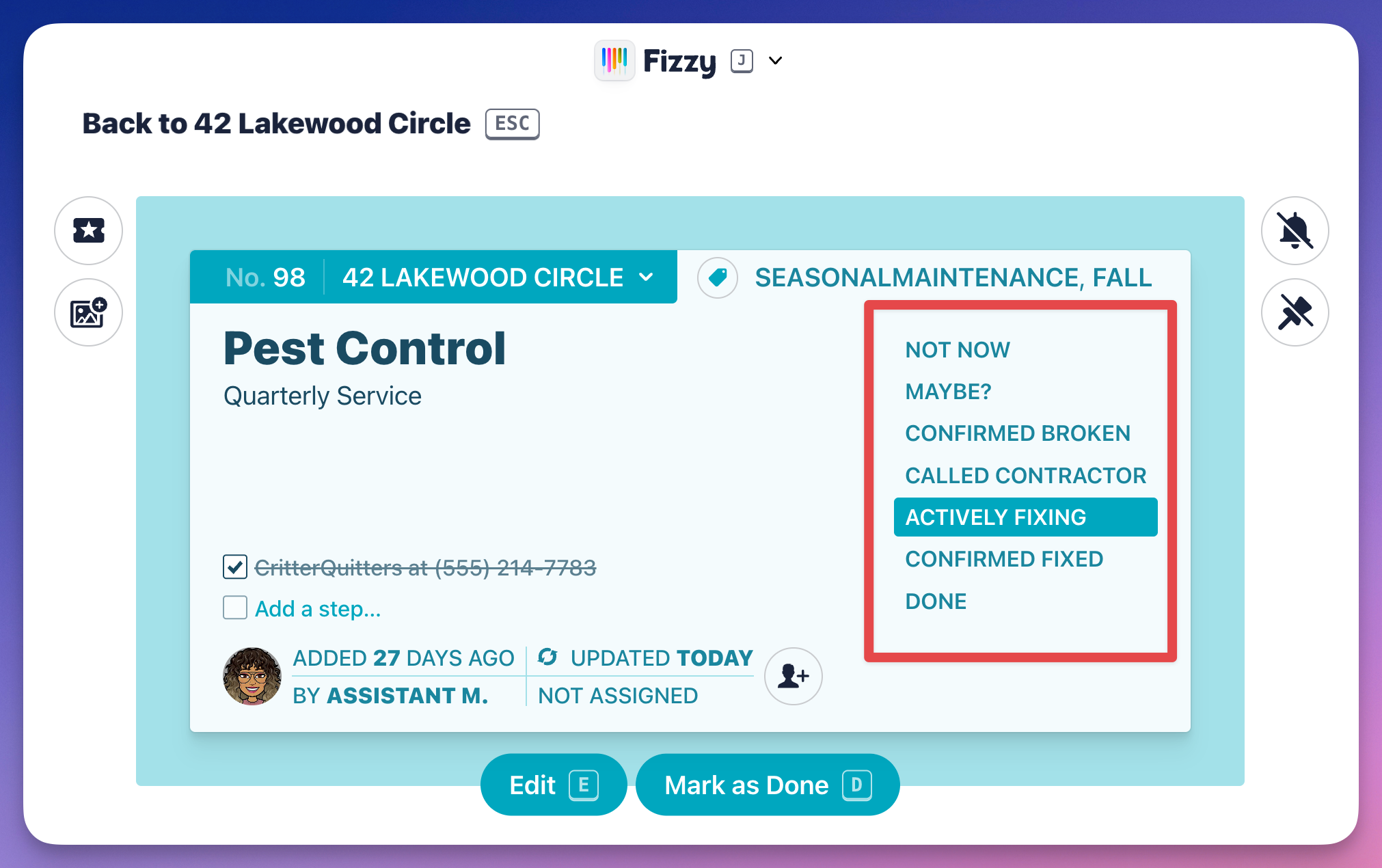
Already have a particular card open? Click a column from the list on the right to move it.
Sometimes, you'll want to move a card to another board. To do that, click the board banner on the top-left and select the new board from the drop-down menu.
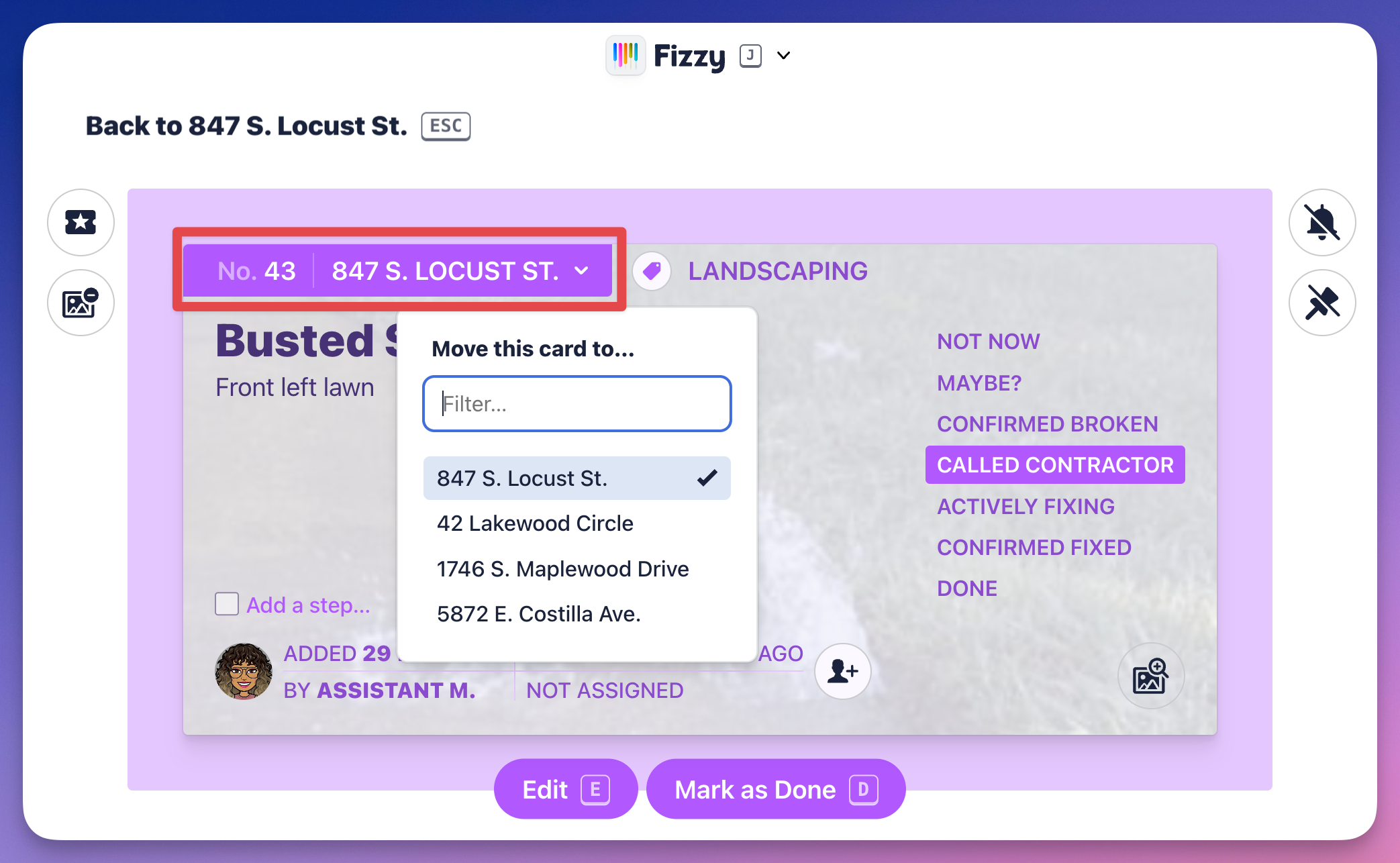
When a card is moved to a different board, it goes to the MAYBE? column of the new board.
Prioritize your card
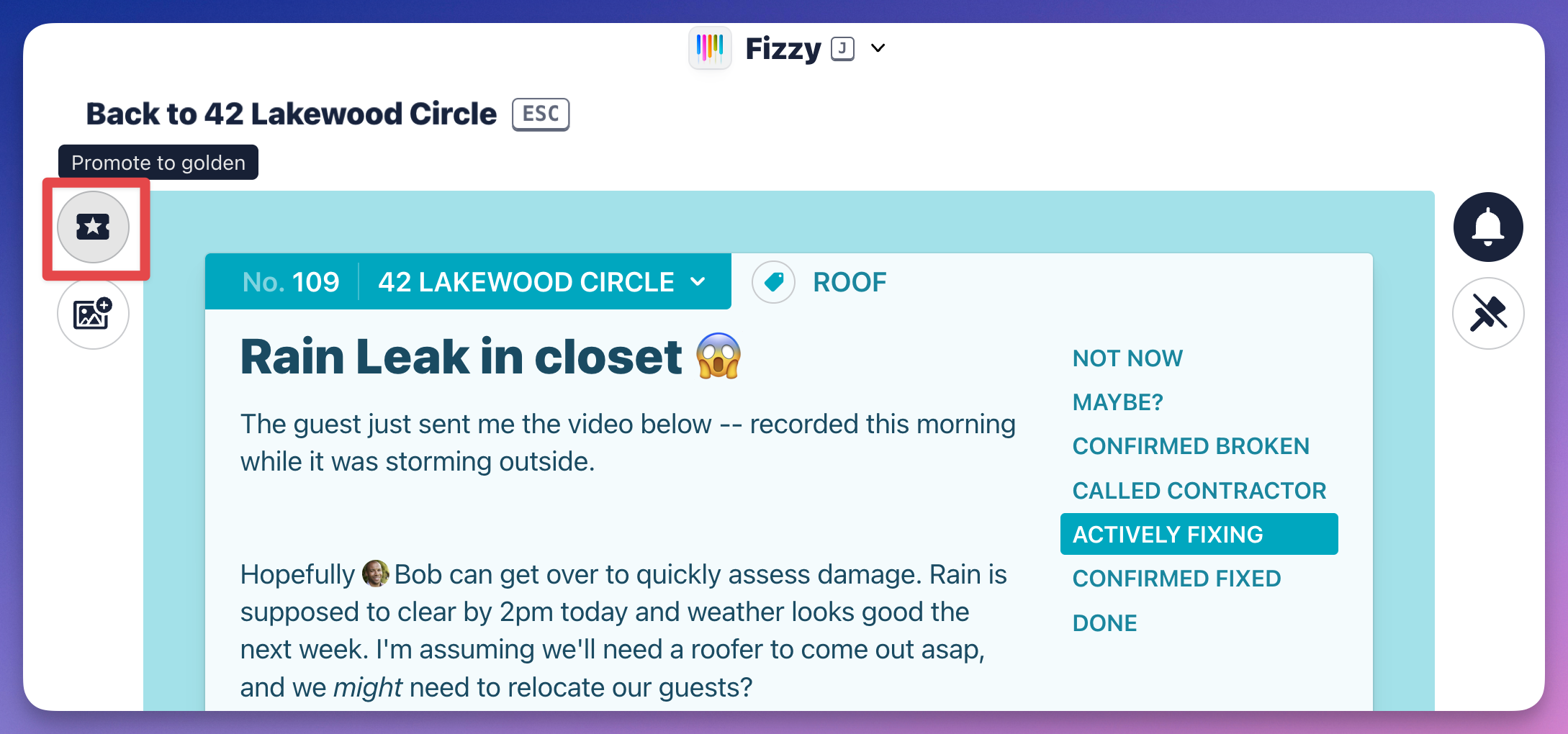
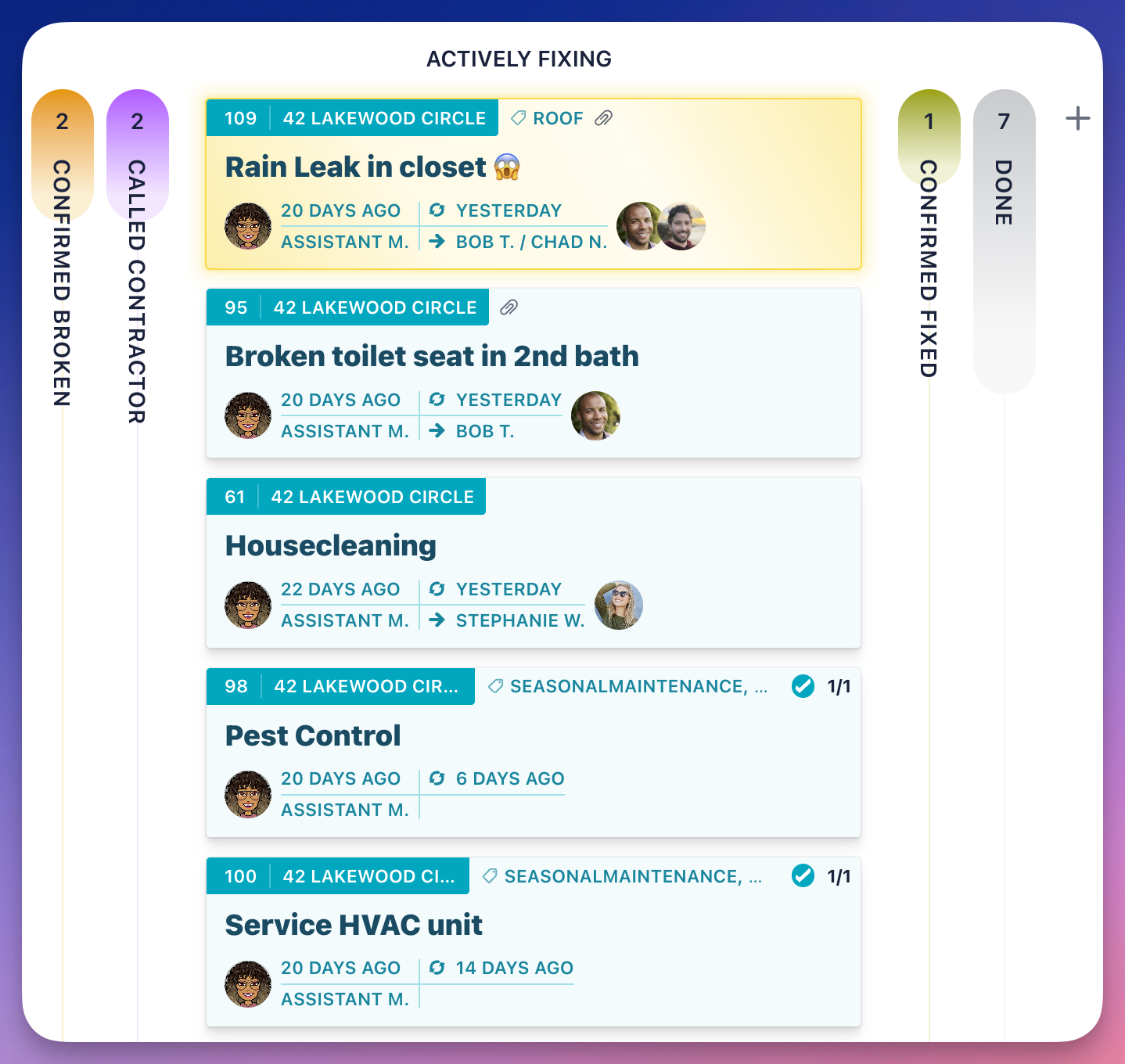
You can instantly see your more urgent cards by turning it into a Golden card. Click the "ticket" icon at the top left and your card will turn gold and float to the top of the column.