Tag a card
Save time by grouping related cards together using tags. For example, an electrician can open the Fizzy menu, select the Electric tag, and they'll see all the electrical needs across all boards in a snap.
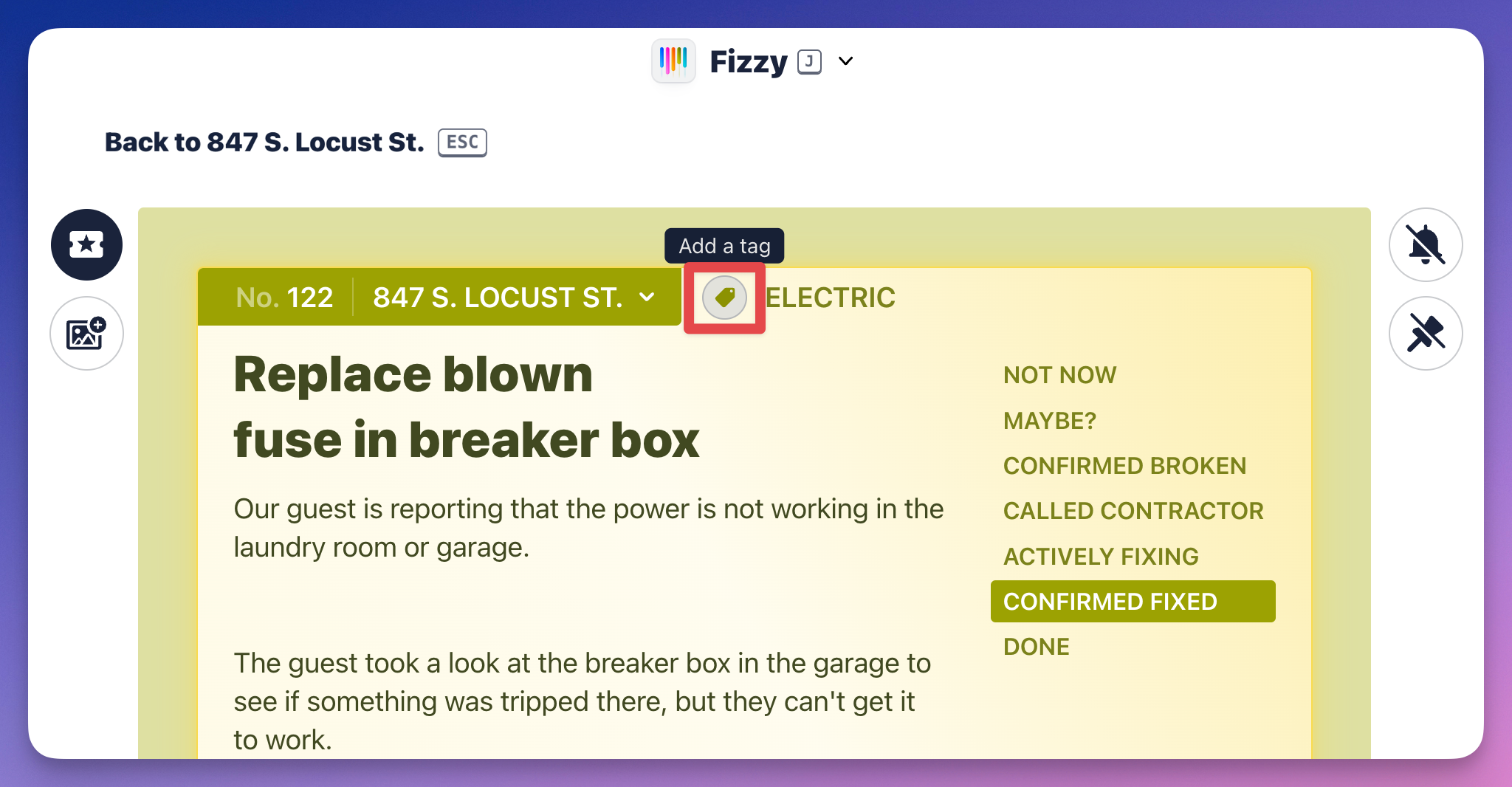
Add a tag by clicking the "tag" icon located at the top of the card or by hitting T on your keyboard. This'll open a menu where you can add a new tag, select an existing tag, and remove a tag.
Edit a card
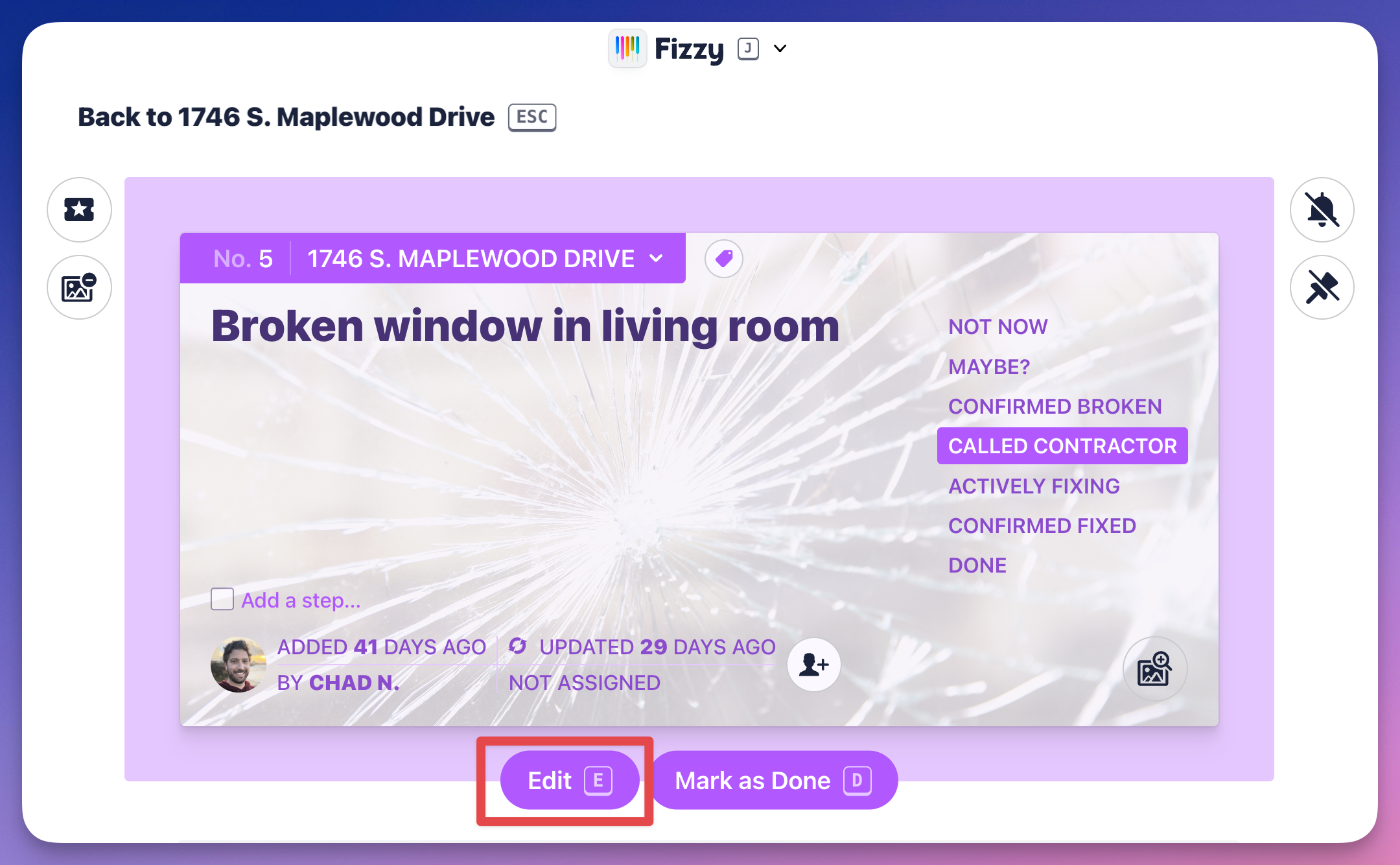
You've got three options here: click the card title to open the text editor; click the Edit button; or press E on your keyboard. Any of these actions will open the text editor.
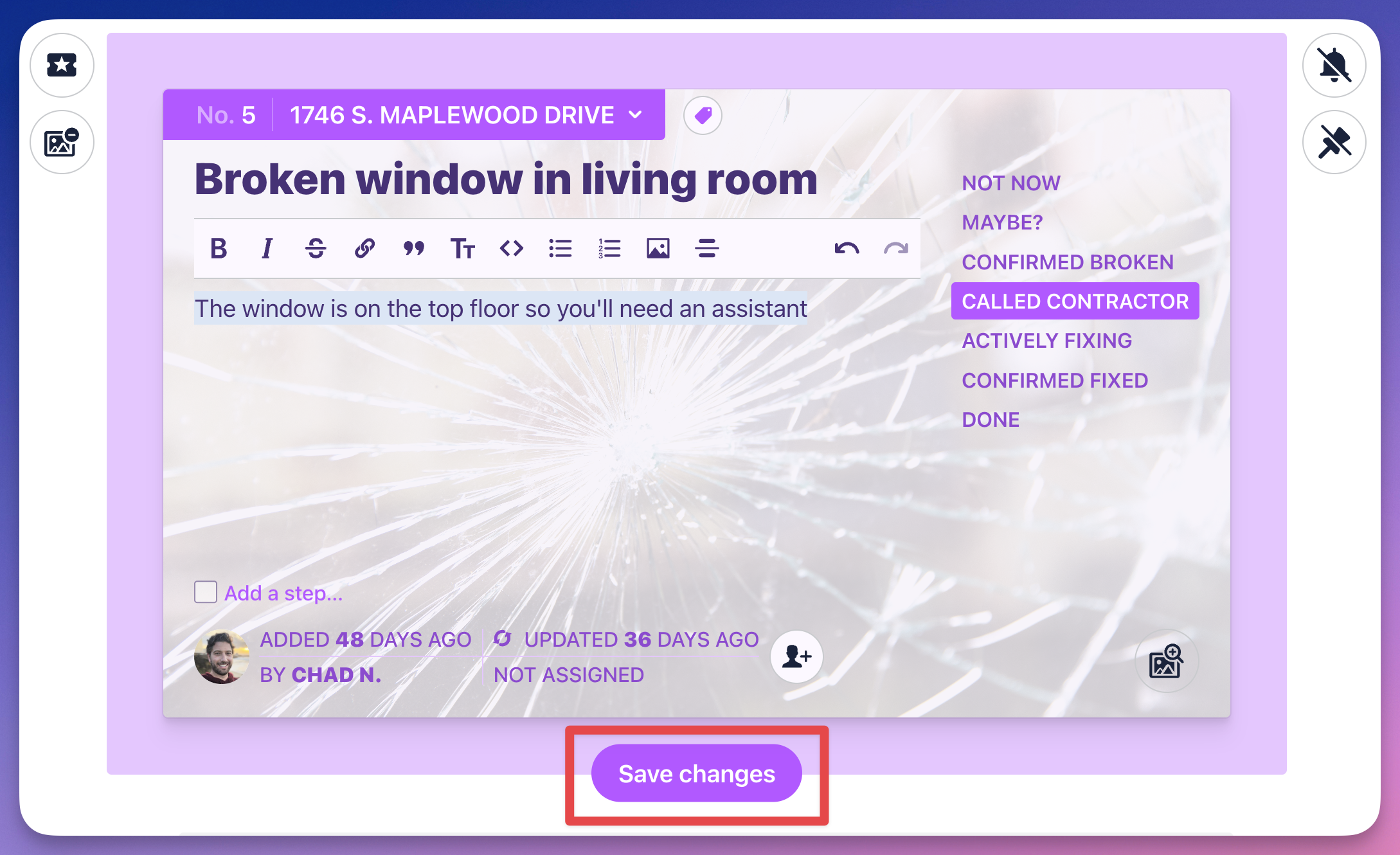
Save your changes by hitting CMD + Return (Mac) or CTRL + Enter (Windows) on your keyboard or clicking the Save changes button.
Edit or delete a step
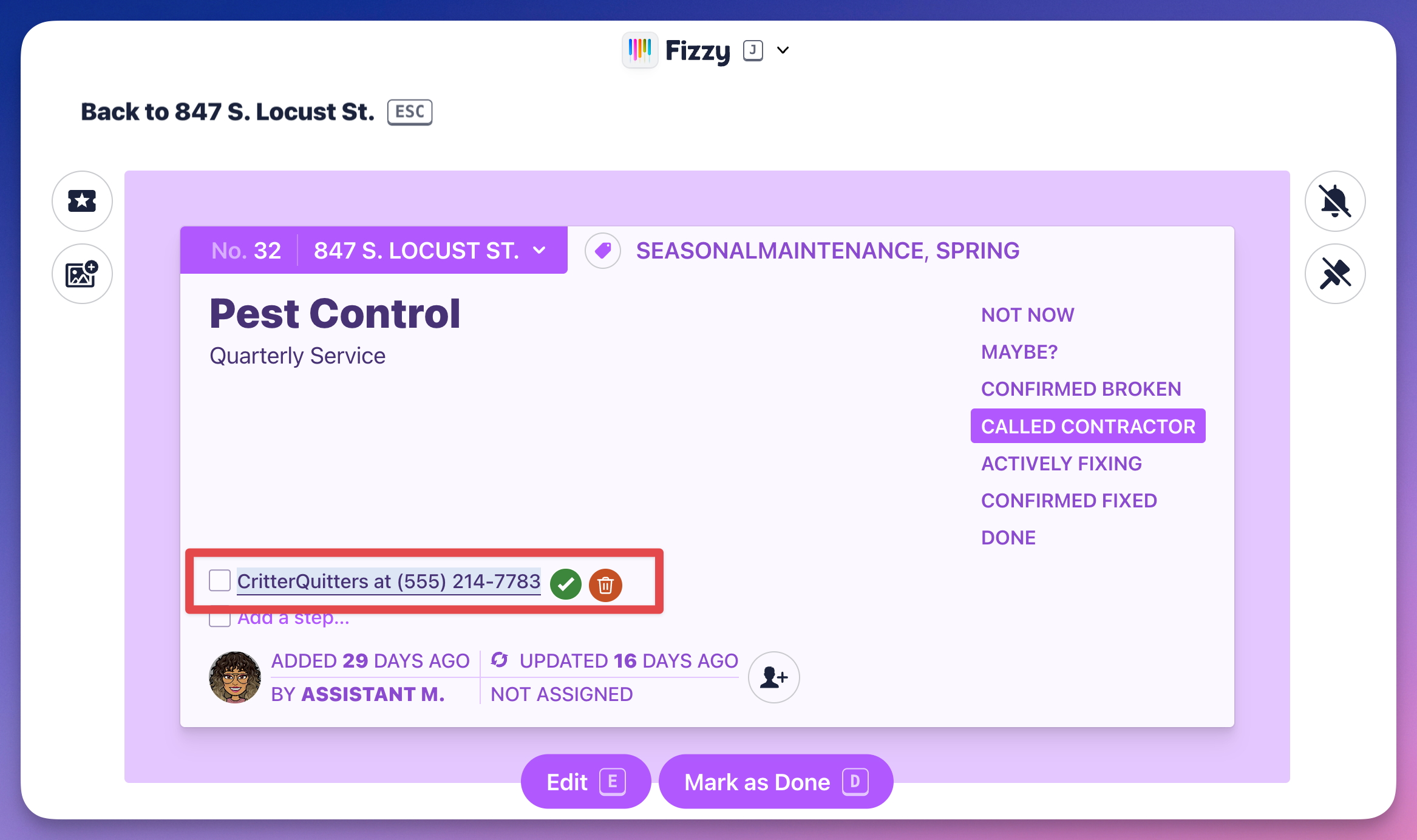
Changing a step is effortless — click the step, start typing to make changes, and hit the checkmark to save. Or, click the trash icon to delete it. That's it.